


Typing on a keyboard you never really chose can lead to a certain type of frustration. It is pre-installed, functions as intended, and is rarely questioned. Then a coworker’s autocorrect appears suspiciously more intelligent than yours, or a friend brings up Swype gestures, and all of a sudden the question arises: can you really change this?
You are able to. Additionally, it’s not as complicated as the settings menu suggests.
The path begins in the same location on almost all Android phones. Locate “System,” “General Management,” or occasionally simply “Additional Settings,” depending on the manufacturer of your phone. It is a little annoying but not a significant barrier because Samsung buries it a little differently than a Pixel. Next, select “Language & Input,” followed by “On-screen keyboard” or “Virtual keyboard.” Whether or not you have ever accessed that menu, Android stores its list of installed typing apps here.
You can choose a default if all you want to use is what’s already on your phone. However, the majority of keyboard switchers do so because they want something different. Frequently mentioned are Gboard, SwiftKey, and Fleksy, all of which are available for free download on the Google Play Store. After installation, the program usually guides you through its own configuration, asking you to activate it before making it the default. Instead of going through Settings by hand, it’s worthwhile to let the app walk you through this step. Over the past few years, the apps appear to have improved at this handoff, and it is typically faster.
However, there is a warning about data collection in that setup that causes people to hesitate. When you first see it, it appears frightening. Since predictive text needs to learn how you type, the majority of virtual keyboards actually ask for this kind of access. Anyone who is uncomfortable with it can decline and stick with something more constrained, but it’s a valid trade-off and not a warning sign.
Once you have multiple keyboards installed, switching between them is a small skill in and of itself. Look for a small keyboard icon or a globe symbol by tapping into any text field; these are typically hidden in the navigation bar or the bottom corner of the screen. You can cycle through the keyboards you’ve enabled by tapping it. When you pull down the notification shade on some phones, particularly older models, you’ll see an option called “Choose input method” or “Select keyboard.” Android has never fully resolved the lack of intuitiveness.
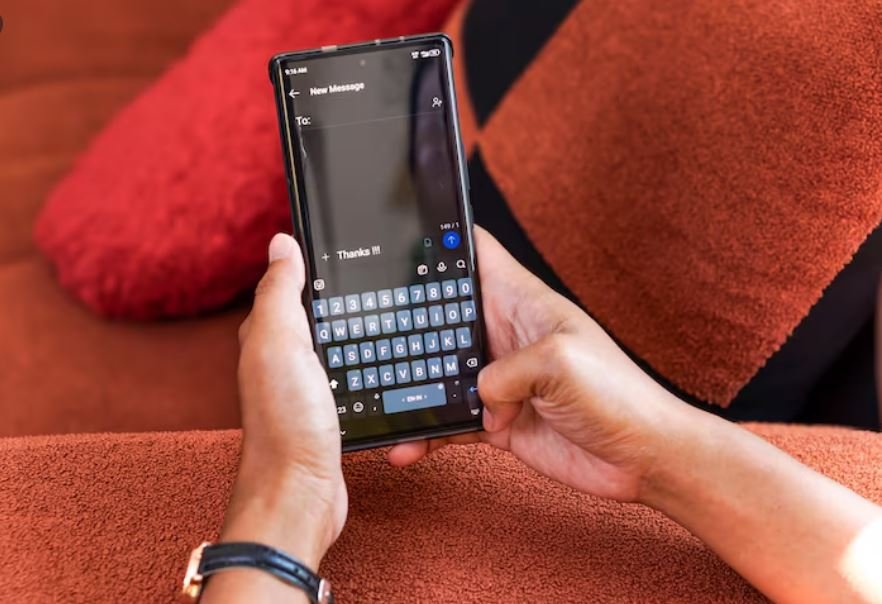
The fear of breaking something seems to worry people more than the steps themselves. It’s a reasonable instinct, but in this case it’s mostly unfounded. Nothing is permanently affected by turning keyboards on and off, changing the default settings, or even completely uninstalling one. It only requires a few taps to return to the stock keyboard in the event that a new keyboard malfunctions, acts strangely, or just feels off. In the worst situation, a restart resolves any stubborn issues.
One thing that people fail to notice is that aggressive battery-saving apps sometimes kill third-party keyboards in the background, causing the phone to silently return to its default setting. If a new keyboard keeps disappearing for no apparent reason, it’s usually not a keyboard bug.
This is not dramatic at all. It’s a download, a settings menu, and a few taps that most people take once before forgetting about. However, the five minutes it takes are worthwhile for something that is used hundreds of times every day.
