


There’s a particular kind of panic that comes from a phone screen that won’t turn on. Not the everyday annoyance of a dead battery, but the cold realization that every photo from the last two years might be gone. It happens more often than people admit, usually right after they’ve decided backups are “something to set up later.”
The good news is that Android makes this easier than most people assume, even if Google buries the setting a few taps deeper than it should. Open the Google Photos app, tap your profile picture in the top right corner, and look for Photos settings, then Backup. From there it’s a single toggle. Turn it on, and your camera roll starts quietly uploading in the background, usually overnight if you leave the phone charging and connected to Wi-Fi.
It’s worth pointing out that this isn’t instant magic. A phone with three years of unbacked-up photos can take hours to fully sync, sometimes longer if the connection is patchy. I’ve watched the progress bar crawl on a friend’s phone for most of an evening. Patience matters here more than people expect.
Storage is the part that trips most people up. Google gives everyone 15GB for free, shared across Gmail, Drive, and Photos, which sounds generous until you’ve taken a few hundred video clips of a toddler learning to walk. Once that runs out, Google One plans kick in — 100GB for around $2 a month, 200GB for about $3, or 2TB for roughly $10, with family sharing built into most tiers. It’s not expensive, exactly, but it does mean the “free” backup eventually asks for a credit card.
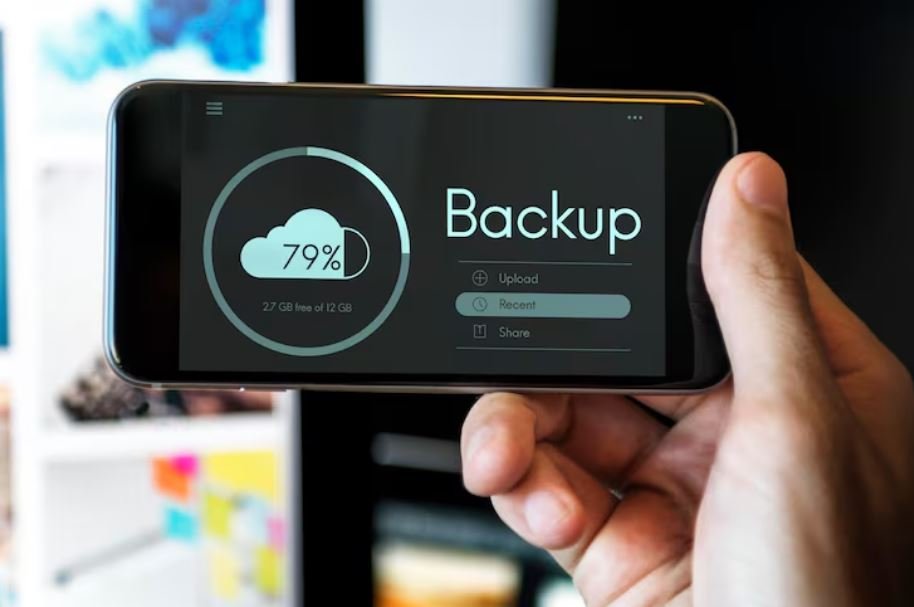
Not everyone wants Google involved at all, and that preference seems to be growing. Some people would rather plug a phone into a laptop with a USB cable and drag files manually from the DCIM folder onto a hard drive. It’s clunkier, there’s no syncing, no AI photo search, just files sitting where you put them. There’s something almost old-fashioned about it, and a small but vocal corner of forums treats it as the more trustworthy option, the logic being that a backup you can physically hold beats one living entirely on someone else’s servers.
OneDrive, Dropbox, and similar apps offer a middle ground, particularly for anyone already tied into Microsoft or Apple ecosystems for other reasons. Samsung owners get an extra layer too, through Samsung Cloud or the newer Temporary Cloud Backup feature, though it’s worth knowing that Samsung backups generally only restore properly onto another Samsung device. That’s a detail easy to miss until you’ve switched phones and discovered your “backup” doesn’t quite transfer the way you hoped.
None of these methods are flawless on their own, which is probably why the more careful approach is layering two together — cloud backup for convenience, an occasional manual copy for peace of mind. It’s a bit redundant, sure. But redundancy is sort of the point when the thing at stake is a photo of someone who isn’t around anymore, or a memory that simply won’t happen twice. A few minutes in a settings menu seems like a small trade for that.
